Web Friendly Images
Three Goals
When preparing images for mcla.edu, consider these three key factors:
- Optimized file size
- Appropriate dimensions
- Descriptive file name
Taking a few minutes to optimize an image before uploading it helps keep MCLA’s website fast, accessible and easy to manage. Large image files can slow down page loading and negatively affect the user experience, particularly for visitors using mobile devices or slower internet connections. Optimizing images reduces file size while maintaining good visual quality.
Files like JPEGS can be uploaded into the _images folder. Images are limited to the following file types:
- .gif
- .jpg or .jpeg
- .png
- .svg
Whenever possible, please optimize the image as a .jpg
1. File Size
The goal is to upload images that are under 300 KB whenever possible. Large files take longer to load and use more bandwidth. A high-resolution photo from a camera or phone can easily be several MB in size, which is much larger than necessary for most website images.
File Sizes:
KB = Kilobyte (smallest)
MB = Megabyte
GB = Gigabyte
TB = Terrabyte (largest)
2. dimensions
Image dimensions refer to the number of pixels in the image's width and height. Images should be sized appropriately for how they will appear on the website. Uploading an image that is significantly larger than the space where it will be displayed can unnecessarily increase the file size and affect page performance. For example, a 23-inch monitor is approximately 1,980 pixels wide, while an image that is 5,472 pixels wide is extremely large for typical web use.
3. Descriptive File Name
Use a descriptive file name that identifies what the image contains. Descriptive file names give search engines additional information about an image and provide useful context for the page where the image appears. They also make images easier to identify and manage within Modern Campus. Use lowercase letters and separate words with hyphens.
Examples:
- mcla-president-rogers-adkinson.jpg
- mcla-campus-center-students.jpg
- mcla-undergraduate-research-conference.jpg
Optimizing Images
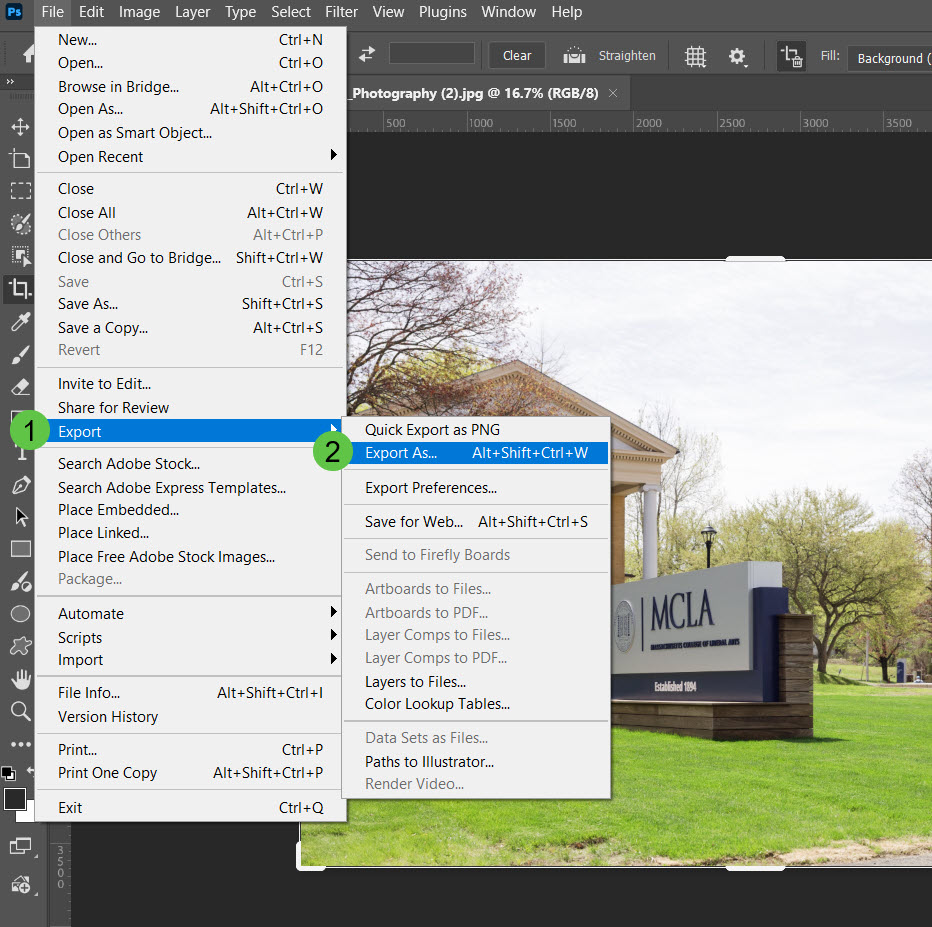
The Web Team recommends using Adobe Photoshop to optimze images for the web.
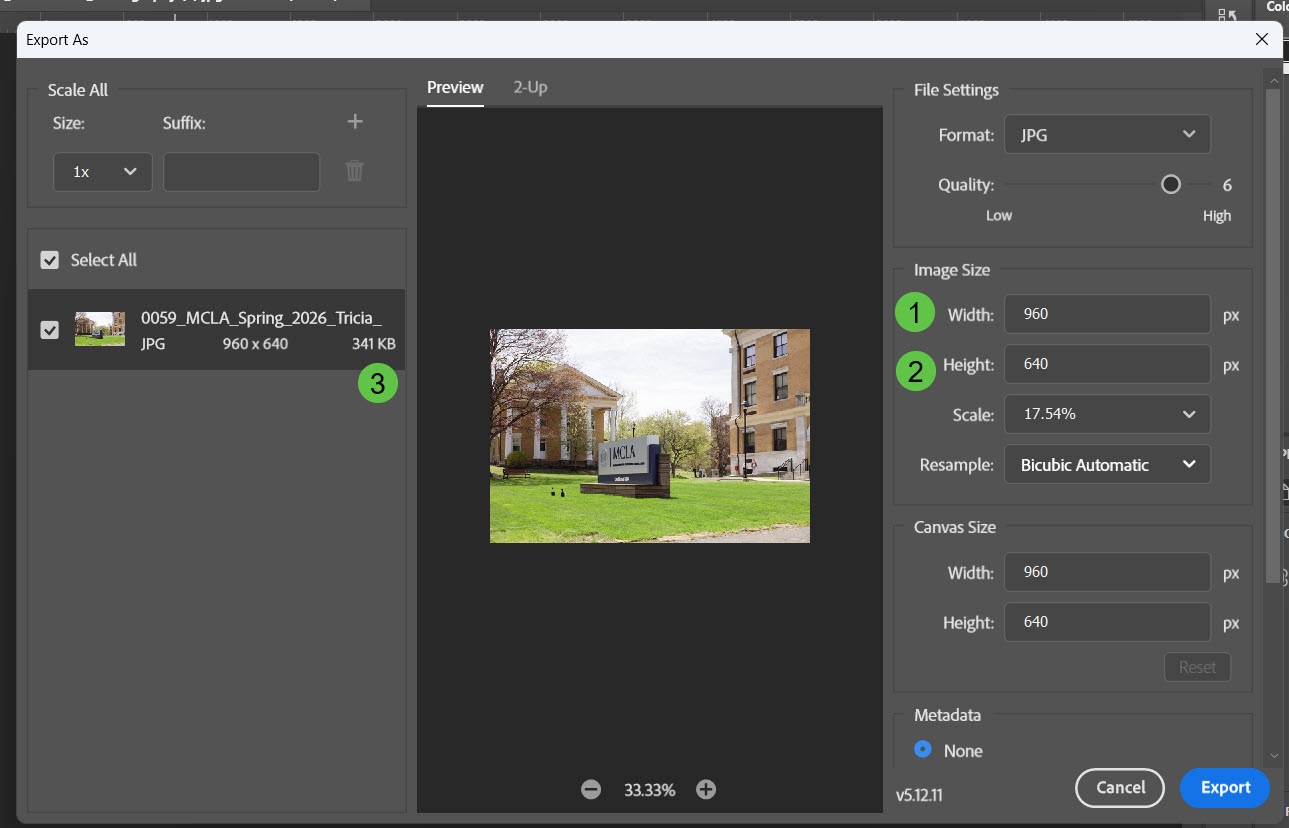
Open the image and from the File menu, select: (#1) Export, then (#2) Export As...
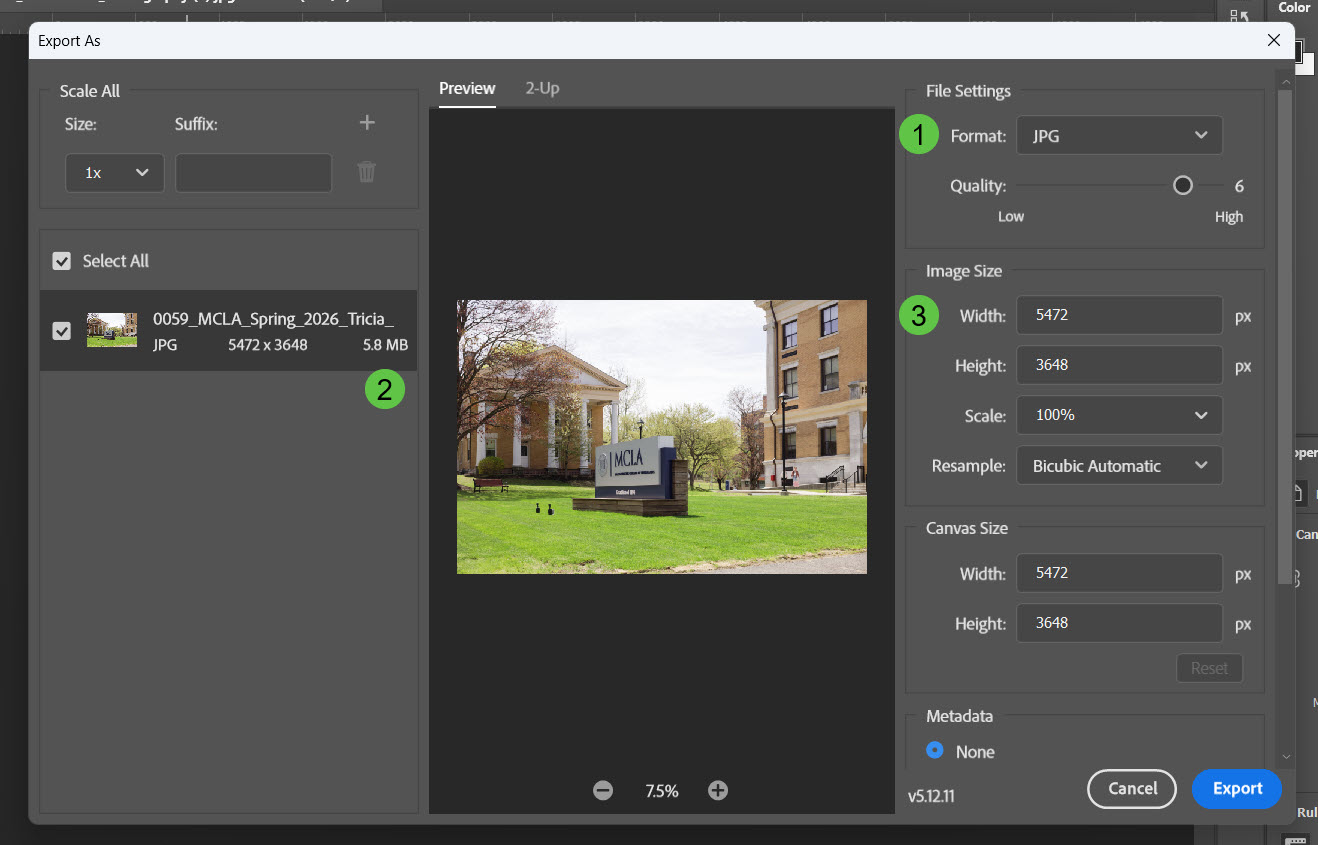
Ensure JPG is selected (#1)
Shows the file size (#2)
Shows Width & Height (#3)
By adjusting the width (#1), the height (#2) auto adjusts, the file size (#3) is reduced.
By adjusting the quality (#1), the file size (#2) is reduced. Setting the Quality
at a 4 is recommended for most images.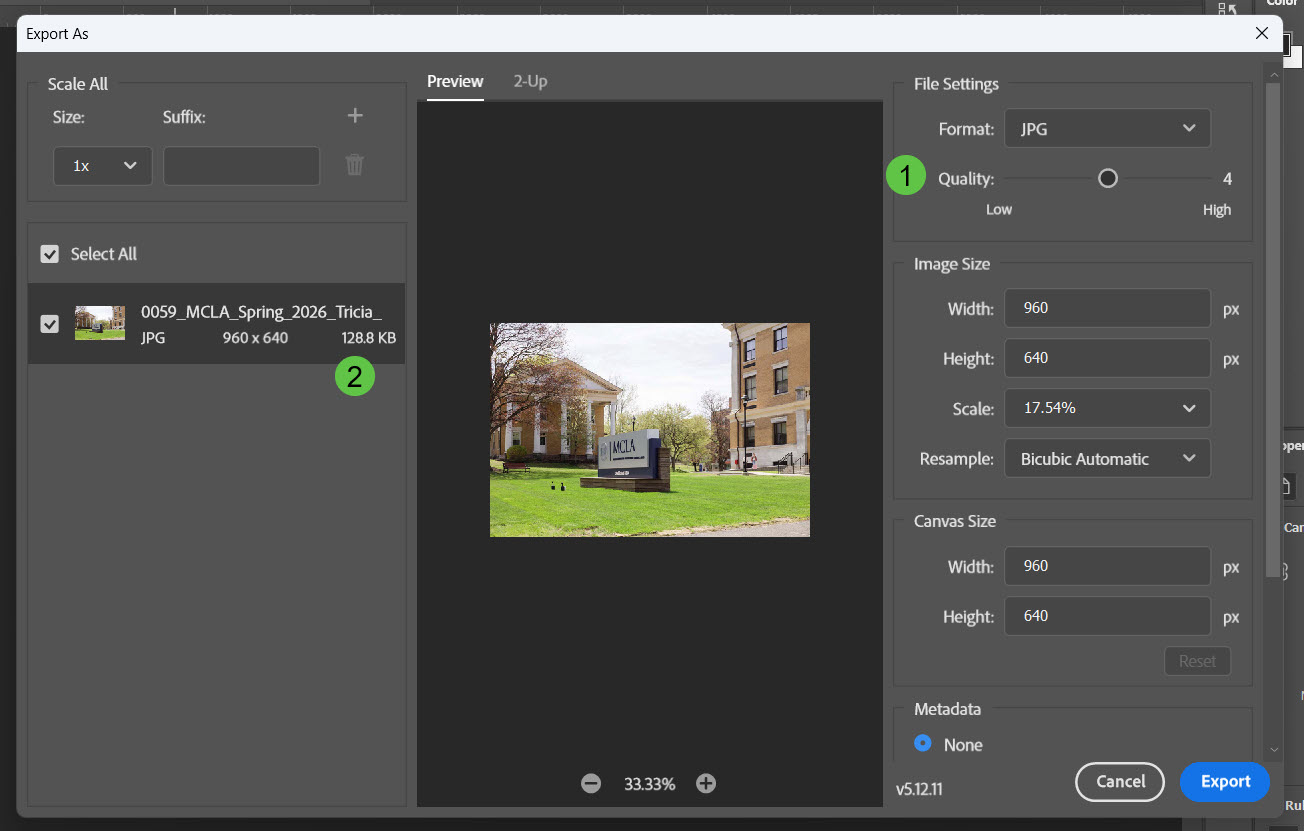
Checking Size & Height/Width from windows desktop
Helpful for getting a quick overview of an image’s properties without having to open Photoshop.
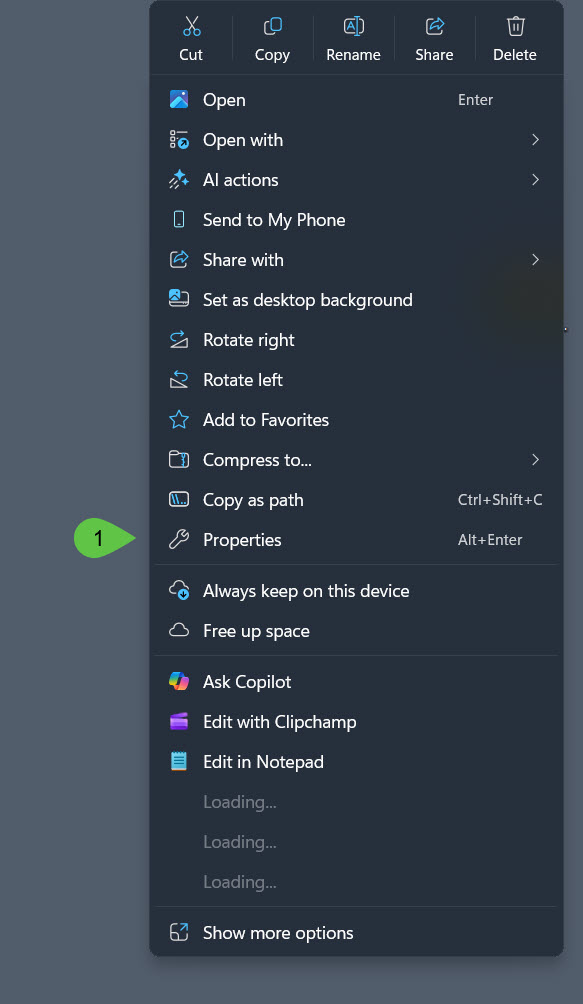
Right-click the image to open the list of options, then select Properties.
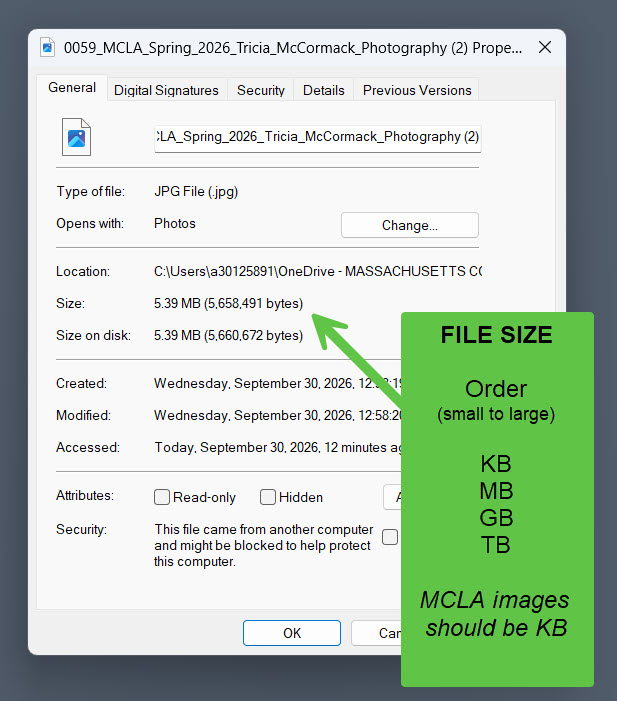
The Size property shows 5.39 MB, which is a very large file size for a web image. The goal is to upload images that are under 300 KB.
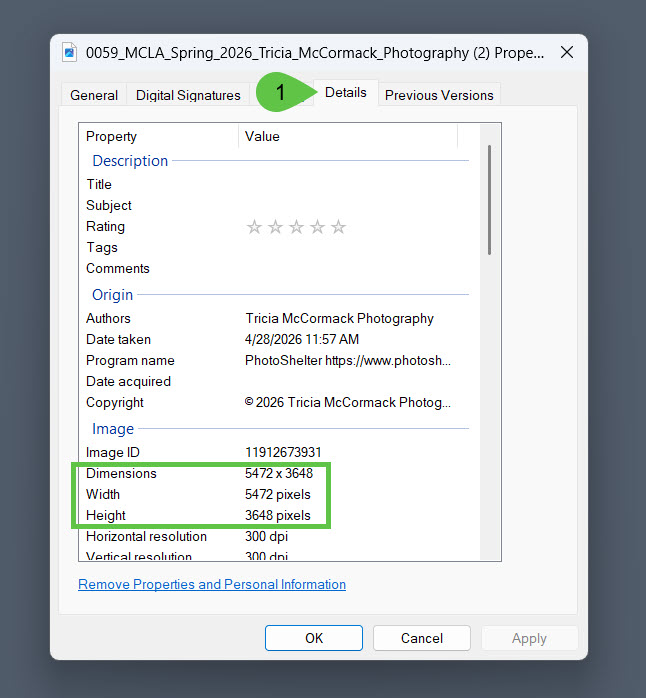
The Details tab (#1) shows the image dimensions, including the width and height. A 23-inch monitor is approximately 1,980 pixels wide, while this image is 5,472 pixels wide, which is extremely large for a web image.
Optimizing the image in Photoshop will allow you to adjust the width and height, as well as the file size mentioned in Step 2.
Resources
We're here to help!